

Quick answer: To uninstall OneDrive without losing files, right-click your OneDrive folder and choose Always keep on this device. When every file shows a solid green check, copy the whole folder to an external drive. Then turn off folder backup and pick Only on my PC, unlink your account, and uninstall the app.
Do the steps in that order. Uninstalling first can leave your photos and documents stuck online, where you can’t open them without the internet. We’ve seen too many customers lose irreplaceable files this way. See the full steps below.
Don’t want to risk it? A technician can remove OneDrive for you in a remote session and make sure every file stays on your computer.
Video by Jason Pargin (@jasonkpargin), posted on TikTok on January 4, 2026.
Why You Must Uninstall OneDrive
OneDrive moves your files off your computer without asking, and one wrong click can delete them everywhere. That’s why we tell our customers to remove it.
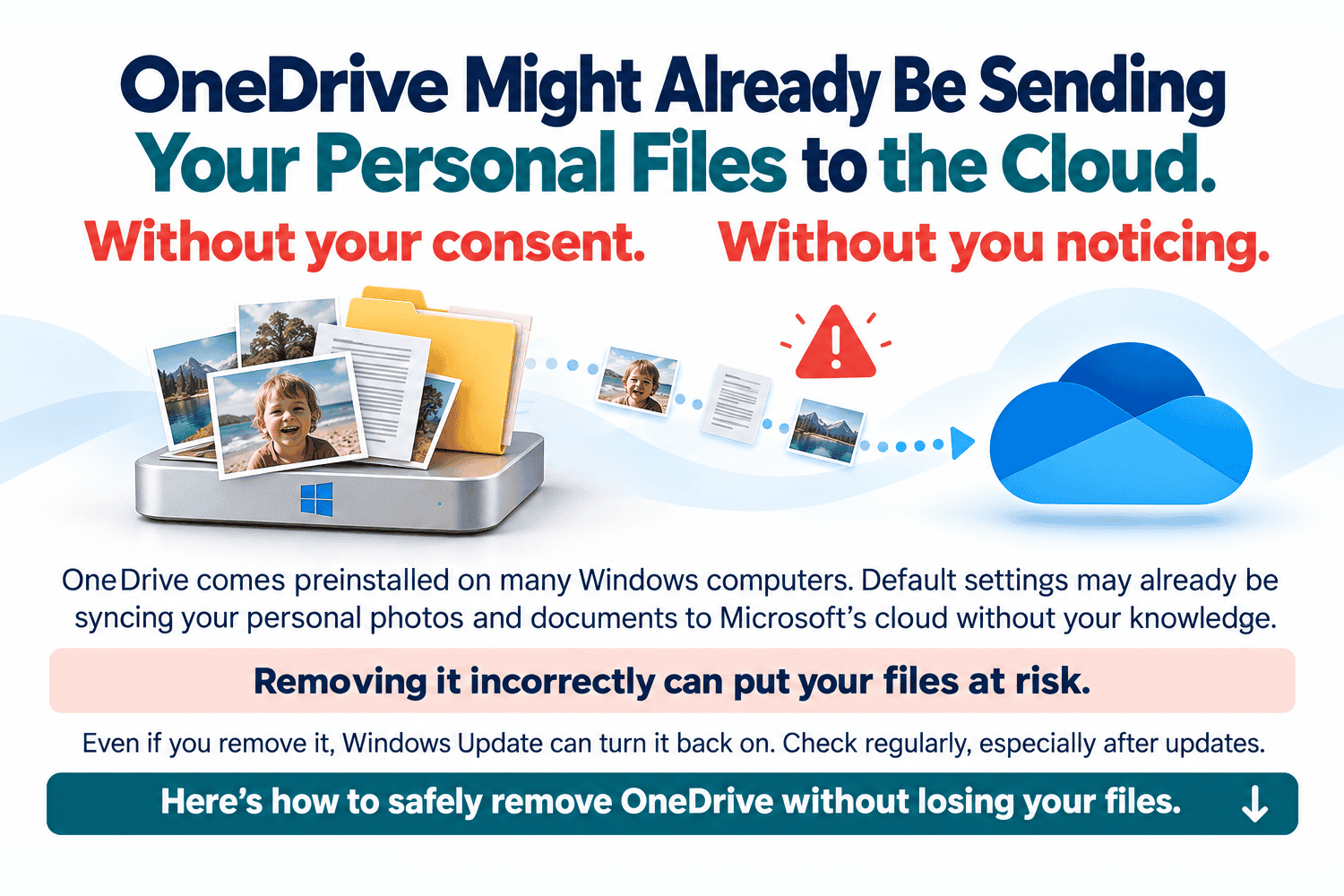
- It turns itself on. In June 2024, PCWorld reported that Windows 11 setup started switching on OneDrive folder backup without asking. Your Desktop, Documents, and Pictures quietly move into OneDrive.
- Your files may not be on your computer. Files with a blue cloud icon live online only. They look like files, but you need the internet to open them (Microsoft’s icon guide).
- Deleting spreads. OneDrive syncs every change. Delete a file on one device to free up space, and it disappears from your other devices too. Sync is not a backup.
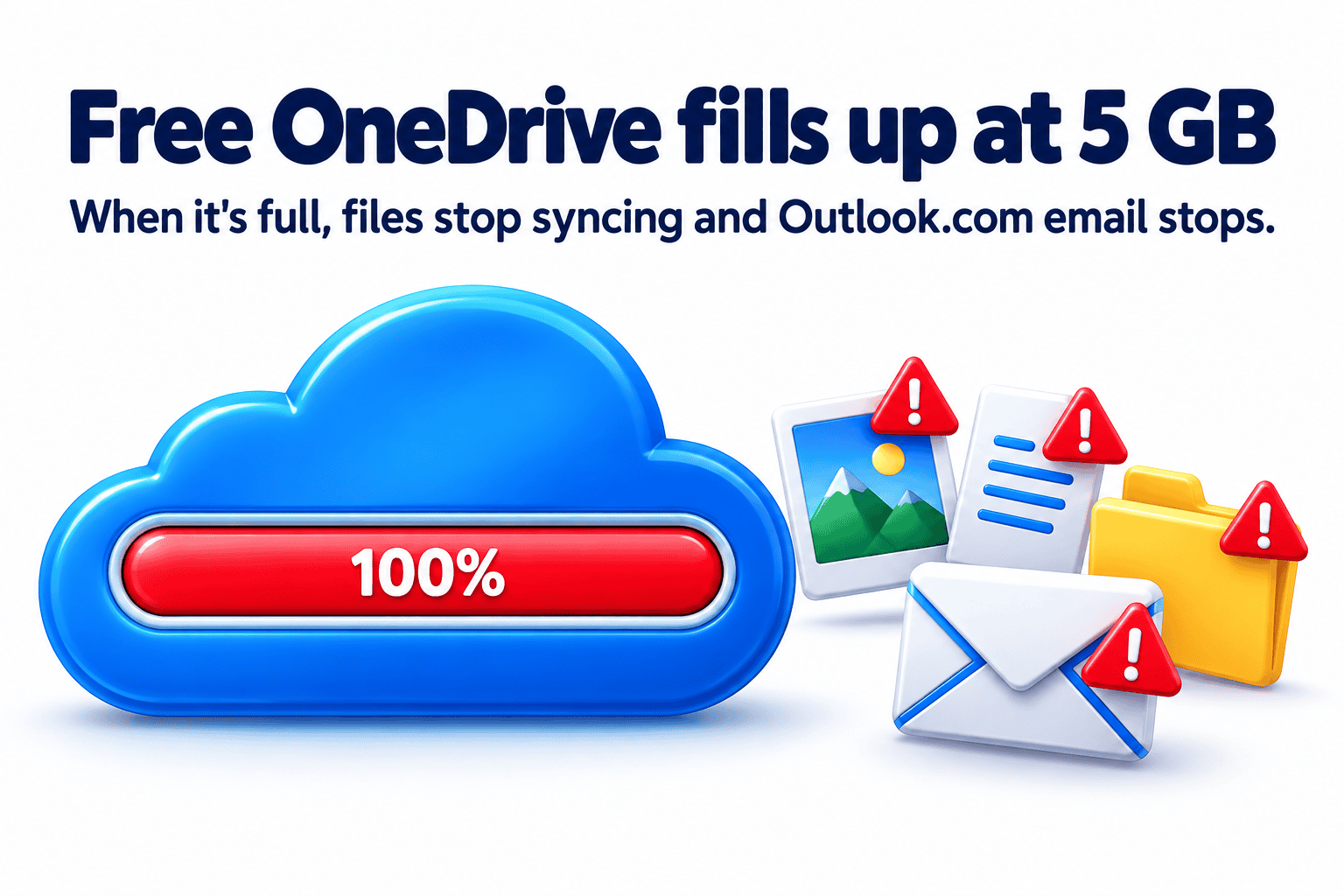
- The free plan fills up fast. Free accounts get 5 GB, shared with Outlook.com email. When it’s full, you can’t upload or sync files, and you can’t send or receive Outlook.com email (Microsoft storage FAQs).
- Turning it off the wrong way empties your desktop. Stop backup and pick the wrong option, and your files stay in the cloud while your computer gets a shortcut called “Where are my files.”
What Jason Pargin warns about. In the video above, Pargin, author of John Dies at the End, walks through how OneDrive wipes computers with no warning or confirmation. A Windows update turns it on, and it starts uploading everything, sometimes 40 GB of videos, work files, and private records. Turn off backup, and the next day your desktop is empty except for a “Where are my files” icon. Download everything back, then delete it from OneDrive to get it off Microsoft’s servers, and OneDrive deletes it from your computer again. He says many people who see this think they’ve been hit by ransomware, and we see the same panic at our repair bench.
Never delete files at onedrive.com while OneDrive is still on your computer. That’s the exact trap Pargin warns about. Finish every removal step below first.

Some files should never sync. Crypto wallet files, seed phrases, tax records, and family photos belong on a drive you control, plus an offline copy on a USB drive you unplug after each backup.
Want it gone without the guesswork?
Our USA-based, RSAG-accredited technicians can remove OneDrive for you.
- Online: We connect to your computer remotely, 7 days a week, 10am to 7pm.
- On-site: We come to your home or business in New Jersey or Boulder, CO.
- Every visit is covered by our 30-Day Service Guarantee.
How to Safely and Completely Remove OneDrive Without Losing Data
Follow every step in order and don’t skip ahead. Each step has a check that tells you it worked. If a check fails, stop and fix it before you move on.
Before you start, you need:
- An internet connection, so OneDrive can download your files
- Enough free space on your computer for everything in OneDrive
- An external USB drive for a safety copy (strongly recommended)
How to Uninstall OneDrive on Windows 11 and Windows 10
Step 1. Download every file to your PC
- Open File Explorer. Press the Windows key + E, or click the yellow folder icon on your taskbar.
- In the left column, click OneDrive. It may show your name, like “OneDrive – Personal.”
- Press Ctrl + A to select everything.
- Right-click any selected item and choose Always keep on this device. On Windows 11, click Show more options if you don’t see it.
- Wait. Large folders can take a while to download.
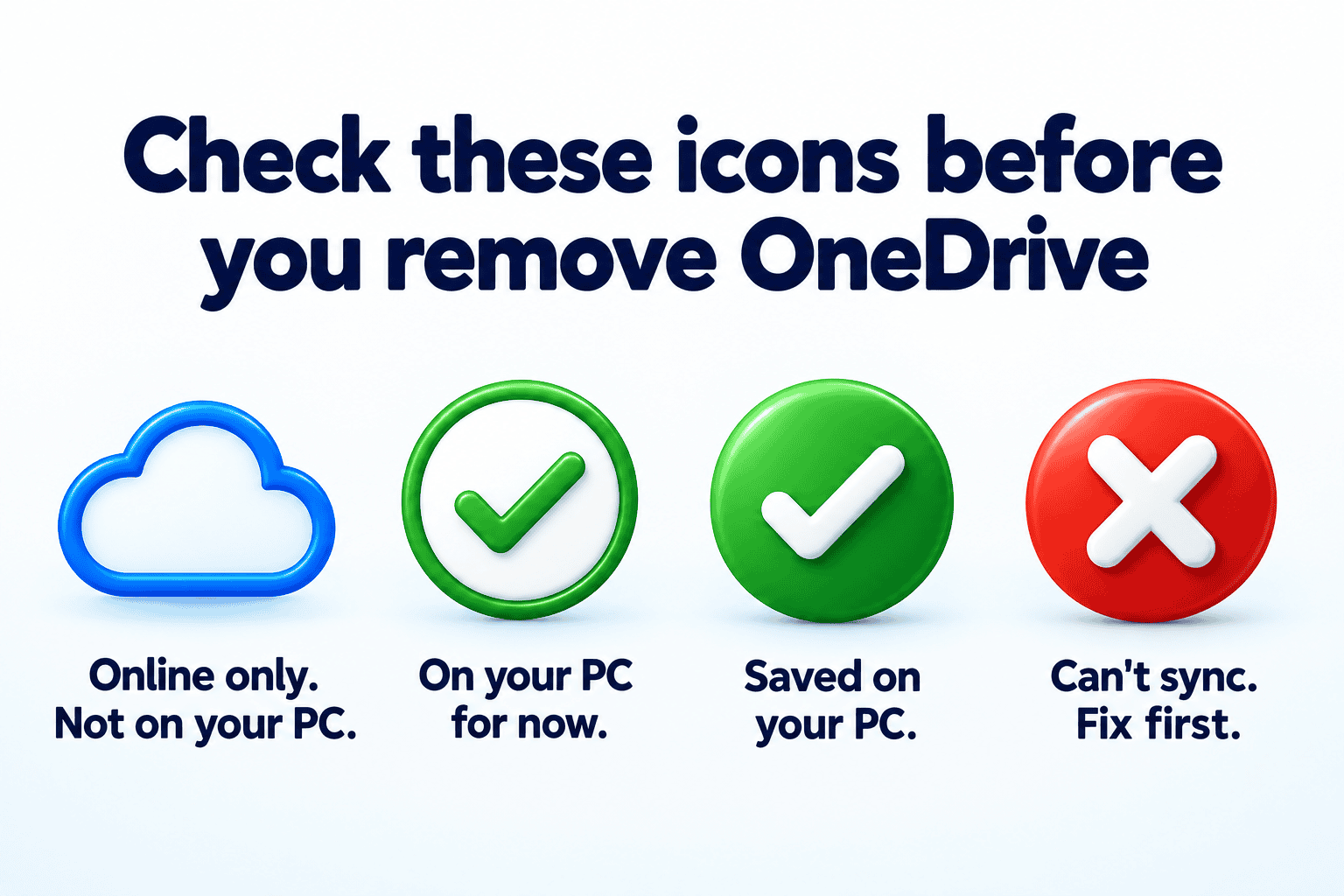
Check that it worked: Look at the Status column. Every item needs a solid green circle with a white check. Circular arrows mean it’s still downloading. A red X means a file has a problem, so stop here and get help.
Low on space? If Windows says your drive is full, stop. Don’t delete anything to make room. Call a technician or use a larger external drive.
Step 2. Make a safety copy
- Plug in your external USB drive.
- Click the File Explorer address bar, type %UserProfile%, and press Enter.
- Right-click the OneDrive folder and choose Copy.
- Open your external drive in the left column, right-click an empty spot, and choose Paste.
- Wait for the copy to finish.
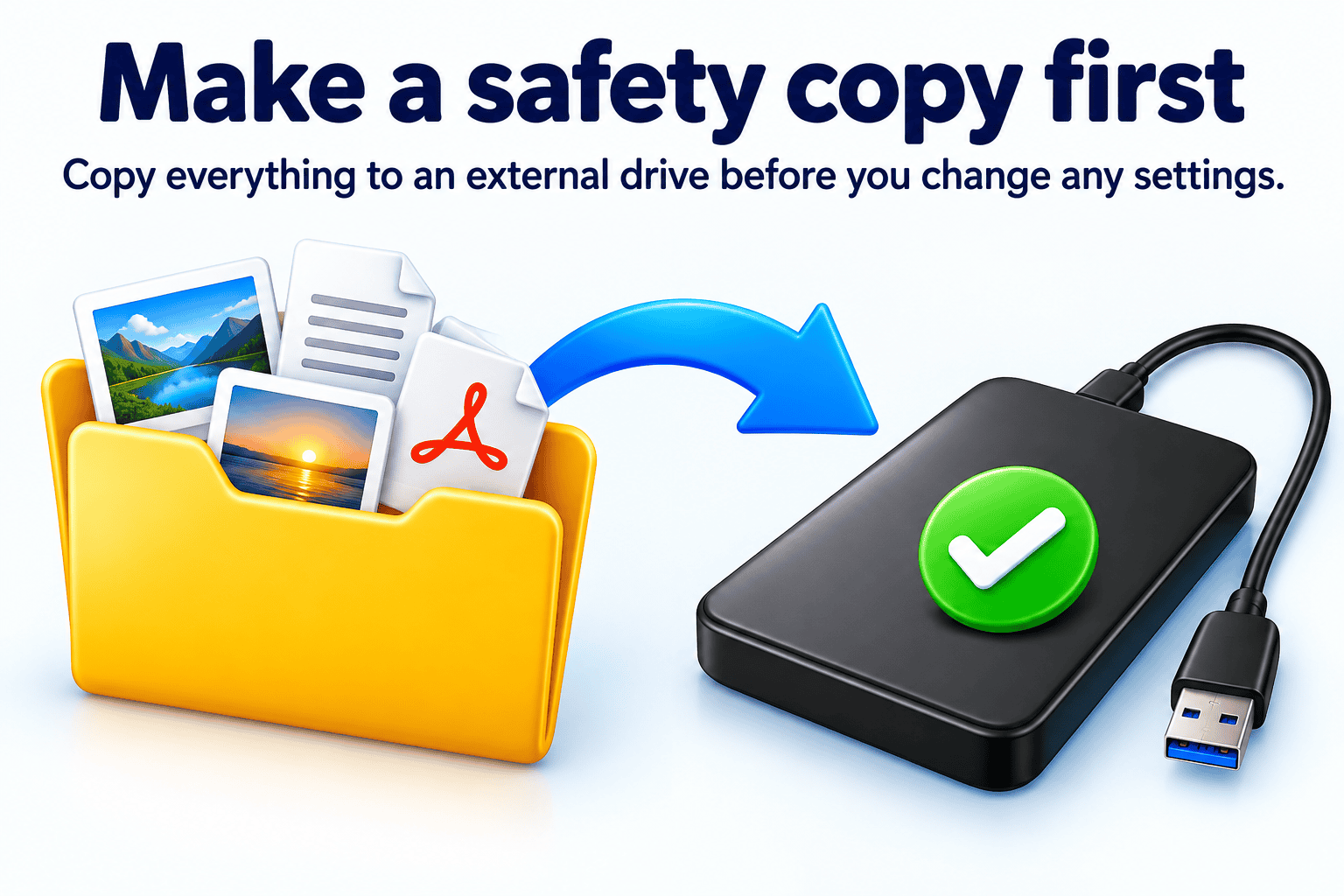
Check that it worked: Open a few photos and documents from the external drive. If they open, your safety copy is good. Keep this drive and don’t erase it until you finish every step and check your files.
Our guide to backing up your computer files to an external drive covers this step in more detail.
Step 3. Turn off folder backup
- Click the OneDrive cloud icon near the clock. If you don’t see it, click the small ^ arrow first.
- Click the gear icon, then Settings.
- Open the Sync and backup tab and click Manage backup.
- Click the switch next to Desktop to turn it off.
- When Windows asks where to keep the files, choose Only on my PC. Never choose “Only in OneDrive.”
- Repeat for Documents, Pictures, and any other folder that’s switched on.
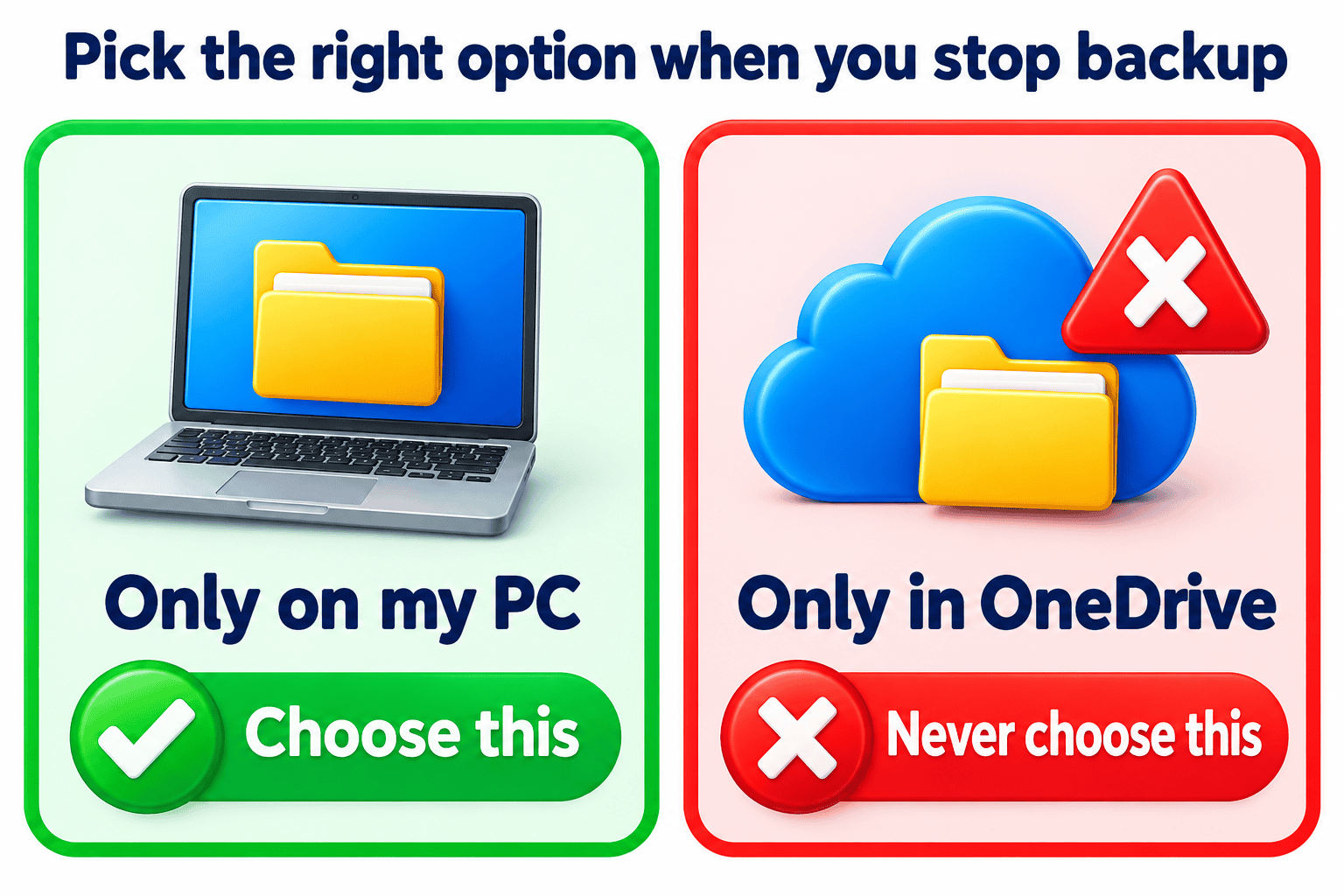
If you see “Some files couldn’t be moved,” some files are still online only. Go back to Step 1.
If you see “OneNote notebooks can’t be moved,” your notebooks live online. Open OneNote and export them before you continue, or get help.
Step 4. Confirm your folders are back on your PC
- In File Explorer, right-click Desktop in the left column and choose Properties.
- Open the Location tab.
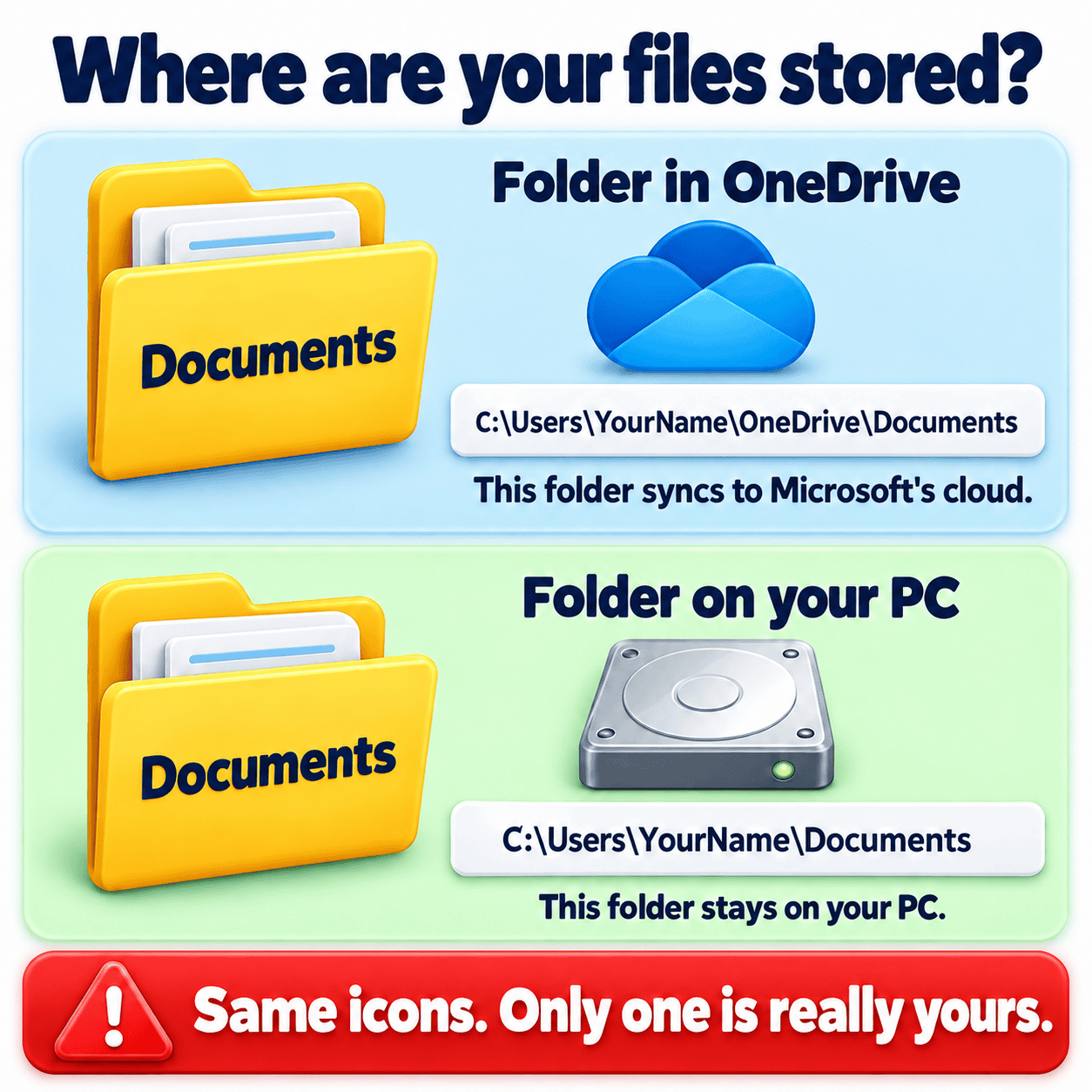
- The path should look like C:\Users\YourName\Desktop, with no “OneDrive” in it.
- If it still says OneDrive, click Restore Default, then OK. Click Yes when Windows asks to move your files.
- Repeat for Documents and Pictures.
Check that it worked: Open your Desktop, Documents, and Pictures folders. Your files should be there and open normally.
Step 5. Unlink OneDrive from your PC
- Click the OneDrive cloud icon, then the gear icon, then Settings.
- Open the Account tab.
- Click Unlink this PC, then Unlink account.
- Close the OneDrive sign-in window that pops up. Don’t sign back in.
Want your files off Microsoft’s servers too? Wait until you finish Step 7 on every computer signed in to your OneDrive. Then sign in at onedrive.com and delete them there. Deleting online any sooner can wipe the copies on your computers.
Step 6. Move any leftover files
- Type %UserProfile%\OneDrive in the File Explorer address bar and press Enter.
- If any files or folders are still inside, select them, right-click, and choose Cut.
- Open Documents, right-click an empty spot, and choose Paste.
Check that it worked: The OneDrive folder is empty, and the moved files open from Documents.
Step 7. Uninstall the OneDrive app
- Windows 11: Click Start, then Settings, then Apps, then Installed apps. Search for OneDrive, click the three dots next to it, and choose Uninstall.
- Windows 10: Click Start, then Settings, then Apps. Find Microsoft OneDrive under Apps & features and click Uninstall.
On some PCs, Windows won’t let you uninstall OneDrive. If that happens, go to Settings, then Apps, then Startup, and switch off Microsoft OneDrive. Since it’s unlinked, it can’t touch your files.
Step 8. Keep OneDrive from coming back
- If Windows ever asks to back up your files with OneDrive during setup or an update, say no.
- Windows 11 and 10 Pro: Press Windows key + R, type gpedit.msc, and press Enter. Go to Computer Configuration > Administrative Templates > Windows Components > OneDrive. Double-click Prevent the usage of OneDrive for file storage, choose Enabled, and click OK.
Stuck on a step, or nervous about your files? We can do the whole job at your home or office in New Jersey or Boulder, CO.
How to Uninstall OneDrive on a Mac
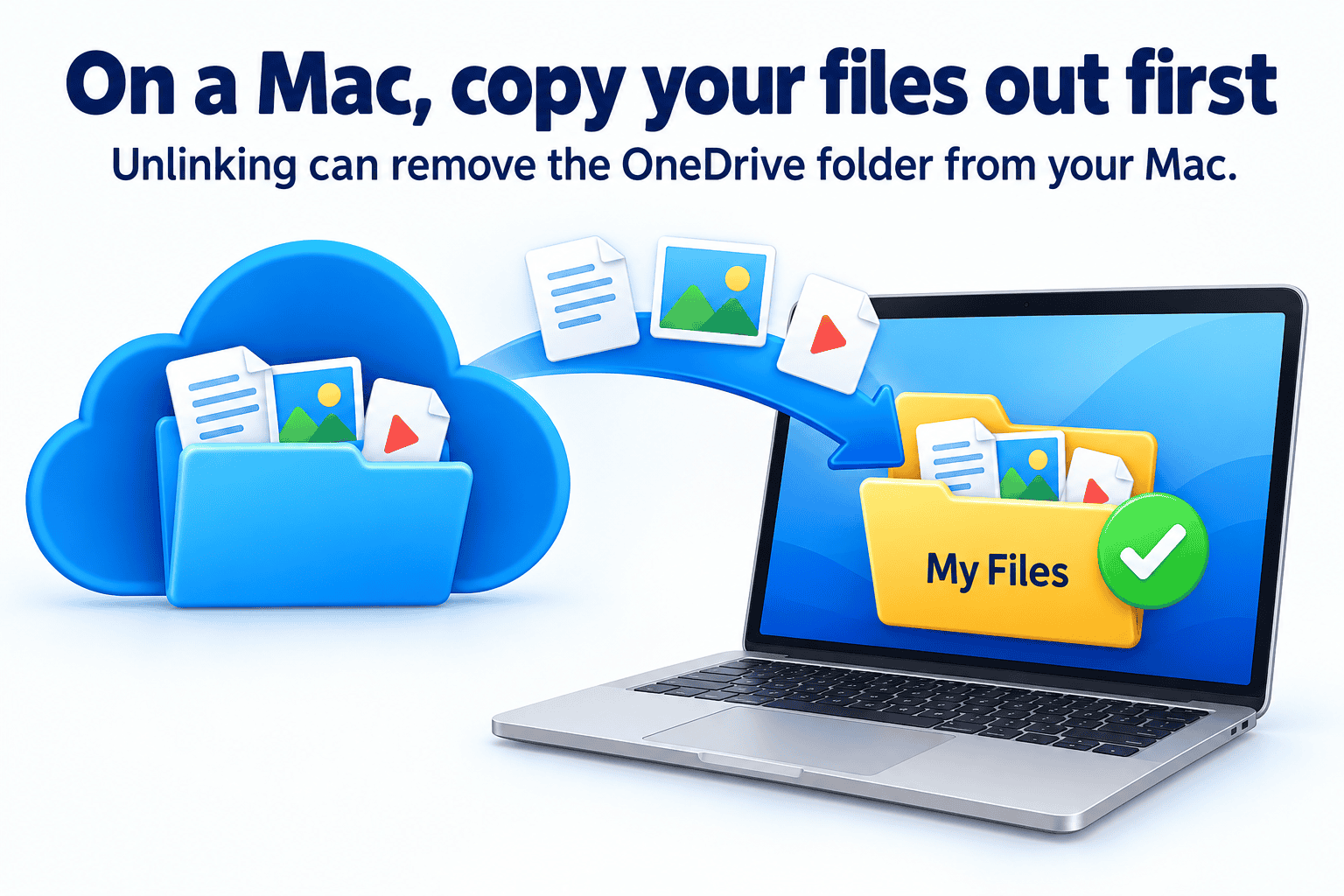
On a Mac, copying your files out of OneDrive is the most important step. Unlinking can remove the OneDrive folder from your Mac, so don’t count on files staying in it.
Step 1. Download every file to your Mac
- Open Finder. In the left sidebar, click OneDrive under Locations.
- Press Command + A to select everything.
- Hold Control, click any selected item, and choose Always Keep on This Device.
- Wait for the downloads to finish.
Check that it worked: No cloud icons remain next to your files or folders.
Step 2. Copy everything to a regular folder
- In Finder, click Go in the top menu, then Home.
- Click File, then New Folder, and name it My Files.
- Go back to OneDrive in the sidebar and press Command + A, then Command + C to copy.
- Open My Files and press Command + V to paste.
- If you have an external drive, paste a second copy there too.
Check that it worked: Open a few photos and documents from My Files. If they open, your files are safe on your Mac.
Step 3. Turn off folder backup
- Click the OneDrive cloud icon in the menu bar at the top of the screen.
- Click the gear icon, then Settings (called Preferences in some versions).
- Find the backup section and turn off Desktop and Documents.
- Open your Desktop and Documents folders. If they’re empty, drag those files from My Files back into them.
On a Mac, OneDrive doesn’t move files back for you. Your copy in My Files is what keeps them safe.
Step 4. Unlink OneDrive from your Mac
- Click the OneDrive cloud icon in the menu bar, then the gear icon, then Settings.
- Open the Account tab and click Unlink this Mac.
Step 5. Quit OneDrive and stop it from opening
- Click the OneDrive cloud icon, then the gear icon, then Quit OneDrive.
- Open System Settings, then General, then Login Items & Extensions.
- Select OneDrive and click the minus (-) button (Apple’s login items guide).
Step 6. Delete the OneDrive app
- Open Finder and click Applications.
- Drag OneDrive to the Trash.
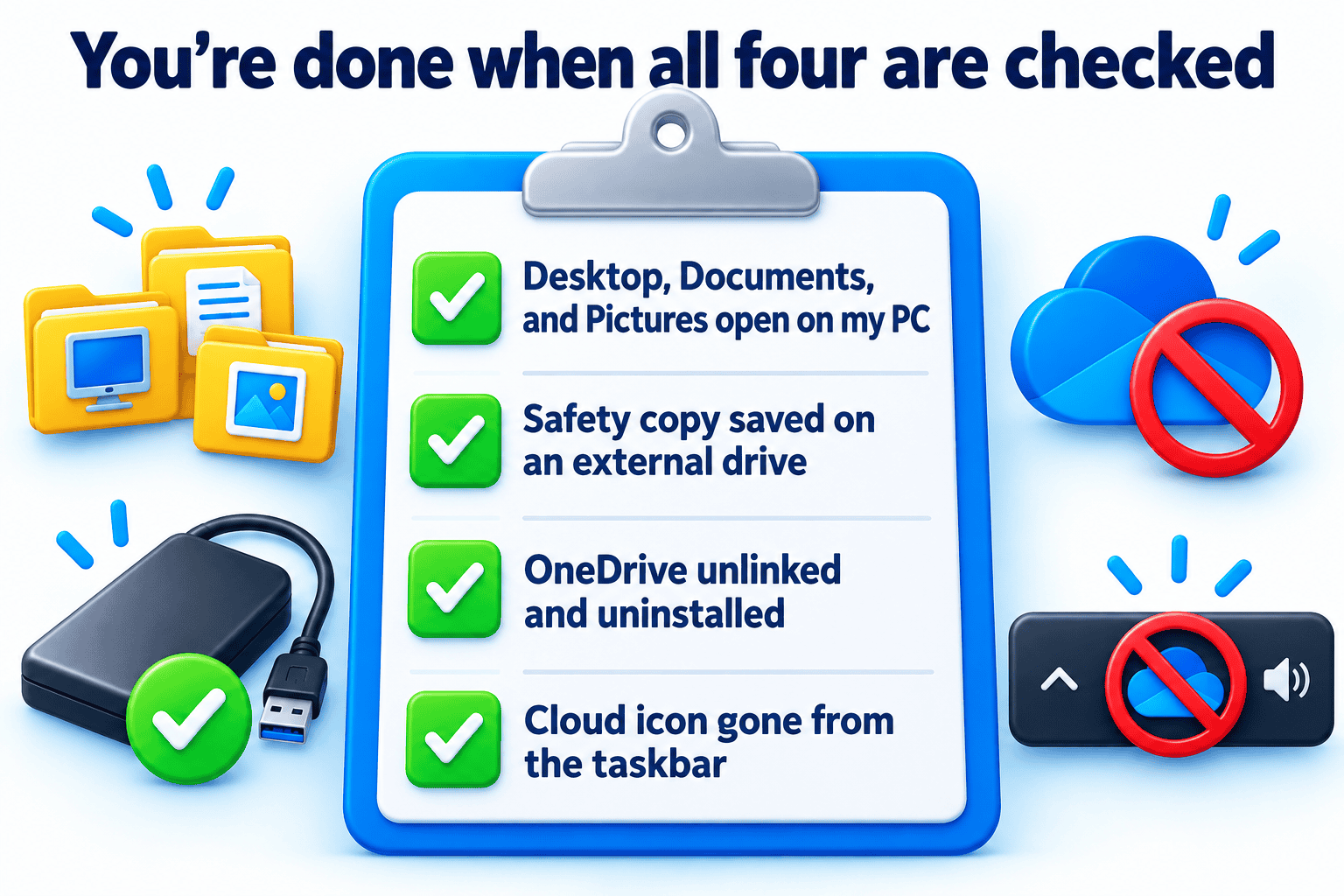
Check that it worked: The cloud icon is gone from your menu bar, and your files open from My Files, Desktop, and Documents.
Rather have a pro handle your Mac? We can remove OneDrive and check your files in a remote session, 7 days a week.
How to Check If Your Computer Has Been Infected with OneDrive
If you see a cloud icon near your clock or in your menu bar, OneDrive is on your computer. The checks below show whether it has already moved your files.
Check a Windows PC
- Look for the cloud icon near the clock. Click the ^ arrow to see hidden icons.
- Check your Desktop’s real location. Right-click Desktop in File Explorer, choose Properties, and open the Location tab. If the path includes “OneDrive,” your Desktop was moved into it.
- Check your installed apps. Go to Settings, then Apps, and search for OneDrive.
- Look at the file icons. Open OneDrive in File Explorer and check the Status column.
| Icon | What it means |
|---|---|
| Blue cloud outline | The file is online only and needs the internet to open |
| White circle with a green check | The file is on your PC for now, but OneDrive can remove it to save space |
| Solid green circle with a white check | The file is fully stored on your PC |
| Circular arrows | OneDrive is still syncing |
| Red circle with a white X | The file can’t sync |
Source: Microsoft’s icon guide
Check a Mac
- Look for the cloud icon in the menu bar at the top of the screen.
- Check Finder. Look for OneDrive in the sidebar and in your Applications folder.
- Find the hidden sync folder. In Finder, press Shift + Command + G, type ~/Library/CloudStorage, and press Enter. A OneDrive folder there means it’s syncing files (Microsoft’s OneDrive blog).
- Check login items. Open System Settings, then General, then Login Items & Extensions.
Already missing files? Stop using the computer and don’t install recovery apps on it. Our data recovery team shows you which files can be saved before you pay.
Frequently Asked Questions
Will uninstalling OneDrive delete my files?
Uninstalling the app doesn’t erase the copies stored in your Microsoft account, but it can cut you off from files that were online only. Those blue-cloud files need the OneDrive sync app or a web browser to open. Download every file with “Always keep on this device” and copy them to a folder outside OneDrive before removal. Done in that order, removing OneDrive leaves your documents and photos on your hard drive.
How do I get rid of OneDrive on Windows 11?
Start by downloading all cloud-only files and making a safety copy on an external drive. Next, open OneDrive Settings, turn off Desktop, Documents, and Pictures under Manage backup, and choose “Only on my PC.” Unlink the account from the Account tab. Finish by uninstalling Microsoft OneDrive from Settings > Apps > Installed apps.
Can I remove OneDrive from a Mac without losing anything?
Yes, if you copy your files out of the OneDrive folder first. Mac folder backup doesn’t return Desktop and Documents files on its own, and unlinking can remove the synced folder from the Mac. Copy everything into a regular folder in your Home folder, open a few files to test them, then unlink. After that, quit the app, remove it from Login Items, and drag it to the Trash.
How do I stop OneDrive from taking over my Desktop and Documents folders?
Open OneDrive Settings, select the Sync and backup tab, and click Manage backup. Switch off each folder and pick “Only on my PC” when asked. Microsoft notes the move fails for files that are still online only, so download those first (Microsoft Support). Afterward, confirm each folder’s Location tab no longer shows a OneDrive path.
Why did my desktop go empty after I turned off OneDrive backup?
Your files are most likely still inside OneDrive, not gone. Choosing “Only in OneDrive” when stopping backup leaves the files in the cloud and the desktop nearly bare. Look in C:\Users\YourName\OneDrive\Desktop or the “Where are my files” shortcut. Mark those files “Always keep on this device,” then move them back to your regular Desktop.
How can I recover files that OneDrive deleted?
Check the OneDrive Recycle bin first by signing in at onedrive.com. Personal accounts keep deleted files there for 30 days, and work or school accounts keep them for 93 days unless an administrator changed it (Microsoft Support). Deleted online-only files won’t show up in the Windows Recycle Bin or Mac Trash. Microsoft 365 subscribers can also roll back their whole OneDrive to an earlier date within the last 30 days.
Can OneDrive be completely removed from Windows?
On most PCs, yes, through Settings > Apps. Microsoft says some versions of Windows include OneDrive as a built-in part that can’t be uninstalled (Microsoft Support). On those machines, unlink the account and switch off Microsoft OneDrive in Startup apps. Windows Pro users can also block it with the Group Policy setting “Prevent the usage of OneDrive for file storage.”
Is it safe to delete the OneDrive folder after removing the app?
Only once it’s empty and your files open from their new location. After unlinking, move anything left in C:\Users\YourName\OneDrive into Documents. Open a few of the moved files to test them. An empty OneDrive folder can then be deleted like any other folder.
Can a computer technician remove OneDrive for me?
Yes. A computer repair technician can download your cloud-only files, back them up, turn off folder backup, and uninstall the sync app. Remote support works over the internet, while an on-site technician handles it at your home or office. Either way, ask for a file check at the end so you know everything opens from your hard drive.
How do I keep OneDrive from turning back on after a Windows update?
Decline any prompt during setup or updates that offers to back up your files with OneDrive. Check Settings > Apps > Startup after major updates and switch off Microsoft OneDrive if it reappears. On Windows Pro, enable “Prevent the usage of OneDrive for file storage” in the Local Group Policy Editor. Microsoft says this setting stops OneDrive from syncing files and removes it from File Explorer.
Lost files to OneDrive already?
Files that vanished during a sync, or sit on a failing drive, can be hard to get back on your own. Geeks On Command tells you what’s recoverable before you pay.
- Recovers data from hard drives, SSDs, USB drives, phones, tablets, and SD cards
- You see a list of recoverable files before payment is required
- “No data, no charge” if recovery fails
Want OneDrive gone today?